
Navigating the 3D Viewer
Blender-style hotkeys, transform gizmos, hiding meshes, and the UV editor in the Studio's viewport.
9 min read
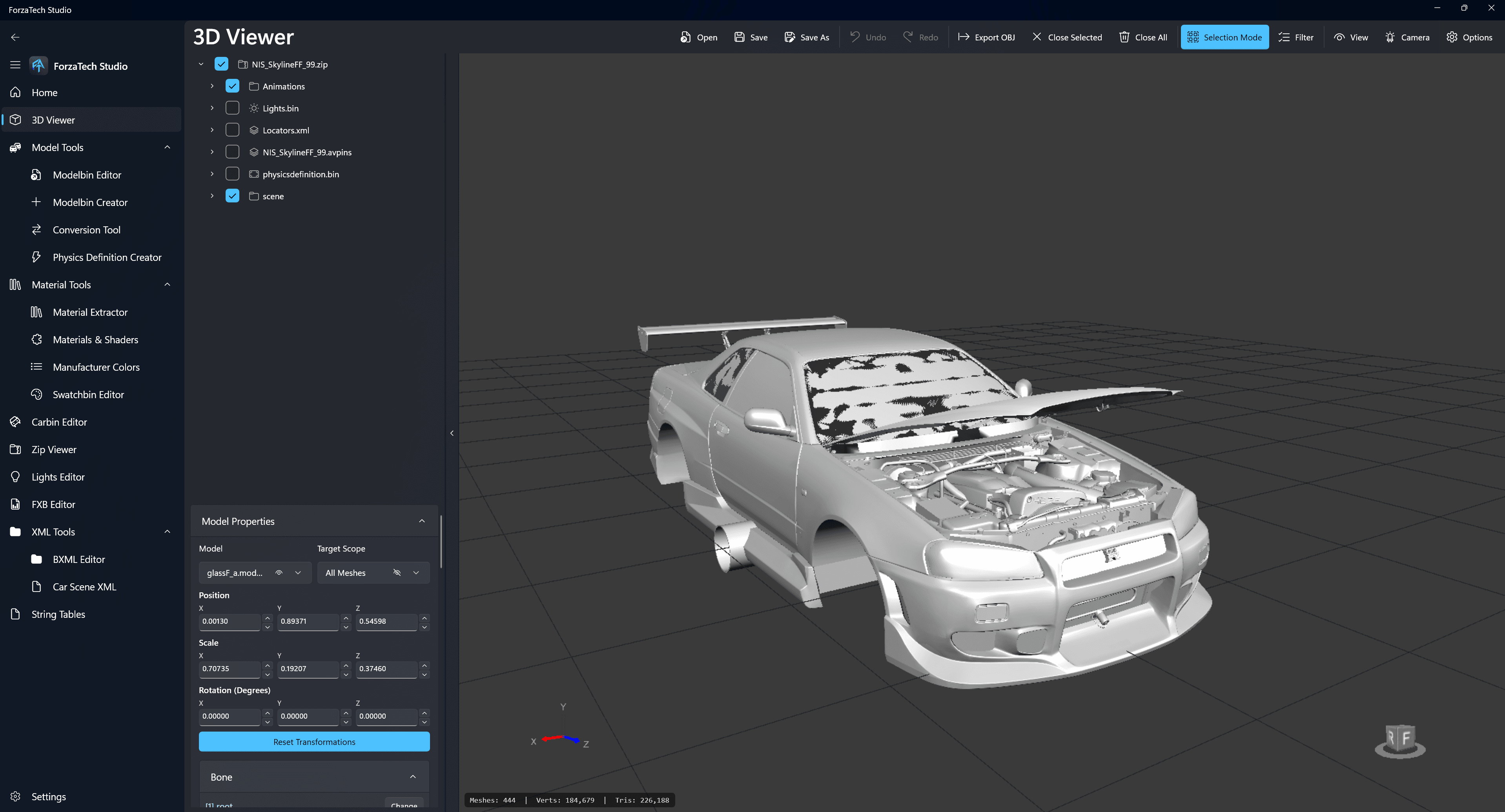
The 3D viewer is an interactive viewport for previewing model assets — meshes, skeletons, locators, and animations. You can also edit transforms directly in it.
The layout
- Left: the app's tool navigation — 3D Viewer, Model Tools, Material Tools, Carbin Editor, XML Tools, and so on.
- File tree: the contents of the opened ZIP or folder, with checkboxes controlling what is displayed. A car ZIP typically contains
Animations,Lights.bin,Locators.xml, an.avpinsfile,physicsdefinition.bin, andscene. - Toolbar: Open, Save, Save As, Undo/Redo, Export OBJ, Close Selected, Close All, Selection Mode, Filter, View, Camera, and Options.
- Model Properties (bottom left): the selected model, target scope, and its Position, Scale, and Rotation (Degrees) values, plus Reset Transformations and a Bone section.
- Status bar: mesh, vertex, and triangle counts for what is loaded.
Editing transforms
Select a part, then type values directly into the Position, Scale, or Rotation fields. Target Scope controls whether the change applies to all meshes or a narrower selection. Reset Transformations reverts your changes to the part.
This panel is where you set a part's scale to 0 to hide it in-game — see Removing a part from a car.
Blender-style hotkeys
As of v0.9.2.0 the viewport uses familiar Blender bindings for free transform control:
- G — move (grab)
- S — scale
- R — rotate
- X, Y, Z — lock the current operation to an axis
There are also dedicated buttons and a gizmo for position, scale, and rotation if you prefer clicking to hotkeys.
Loading files
You can drag and drop a folder or ZIP onto the viewer, or use the open-folder button. Saving writes back to the opened ZIP or folder, rebuilding it fully.
NOTE
Opening several models in sequence has historically been crash-prone. v0.9.2.2 fixed a crash when selecting a new modelbin after a reload, so make sure you are on the current version before reporting viewer crashes.
Hiding vs. removing meshes
These are different operations and the distinction matters:
- Unticking a mesh hides it in the viewport only. It does *not* remove it from the game.
- Setting scale to 0 is what actually makes a part disappear in-game.
- v0.9.2.2 added a mesh enabled/disabled toggle and a quick hide button.
See Removing a part from a car for choosing the right method.
UV editing
The viewer includes a UV map display window with live editing, supporting all UV channels. Those channels are preserved when exporting to FBX.
Other viewport features
- Manufacturer colours are parsed onto modelbins, with an RGB colour picker for carpaint materials.
- Wheel morph support was added in v0.9.2.2.
- An option toggles focusing to the selection in the file list.
Source
Features taken from the v0.9.1.9–v0.9.2.2 changelogs published by the tool author.
Written against Studio v0.9.2.2. Spotted a mistake? Corrections are welcome on the Forza Mods Discord.
Want to contribute a tutorial?
Guides are community-written. Share yours on the Discord or open a pull request on GitHub.